Where Kutula fits
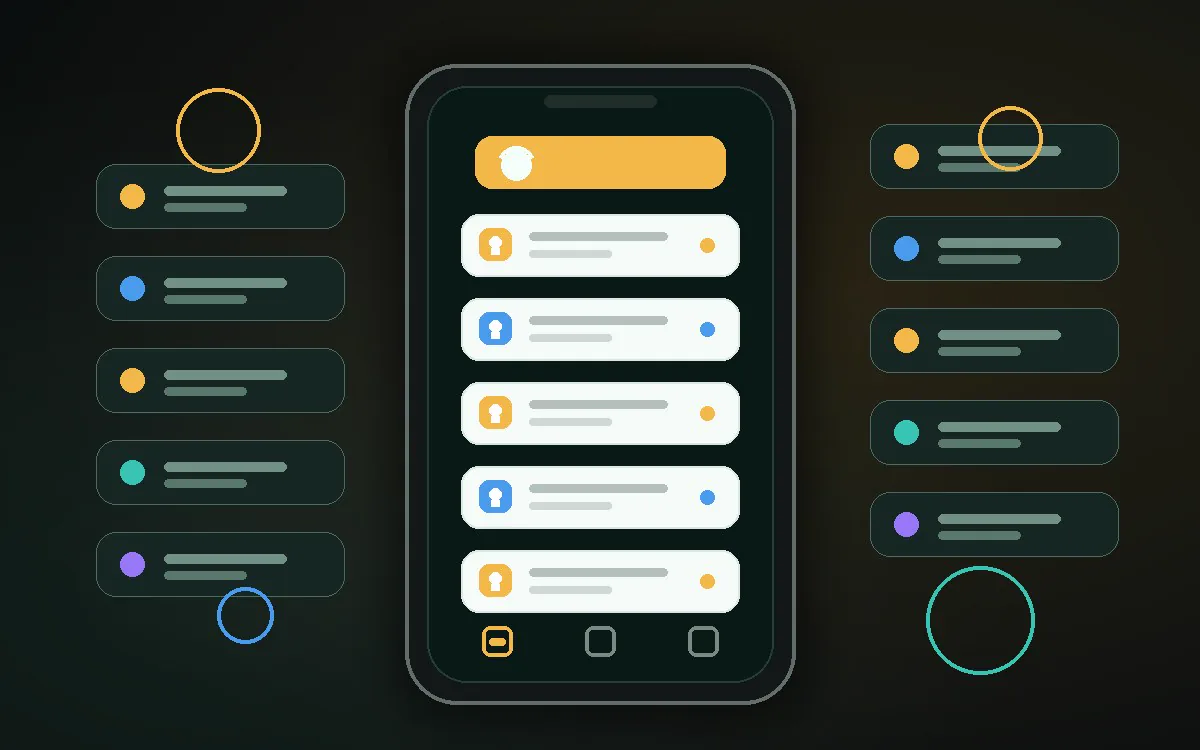
Phone settings decide what arrives. Kutula helps organize received notifications into a clearer on-device inbox.
 Kutula
Huawei guide
Huawei menu labels can change by Android version and region. This guide gives you the practical path to start from.
Quick answer
Try this path first: Settings > Notifications > More notification settings. If it is not exact, search Settings for notification history or notification access.
Next step
Phone settings decide what arrives. Kutula helps organize received notifications into a clearer on-device inbox.
Huawei can rename or move settings across Android and interface updates.
Go to the Notifications area in phone settings.
Try Settings > Notifications > More notification settings and nearby labels.
Turn down promotional or repetitive categories in the source app.
Use Settings search and check your Android version. Labels can vary by model.
Kutula organizes notifications on your device. Notification content is not sent to our servers. Privacy approach
